
Getting More Out of the Apps Already on Your Phone

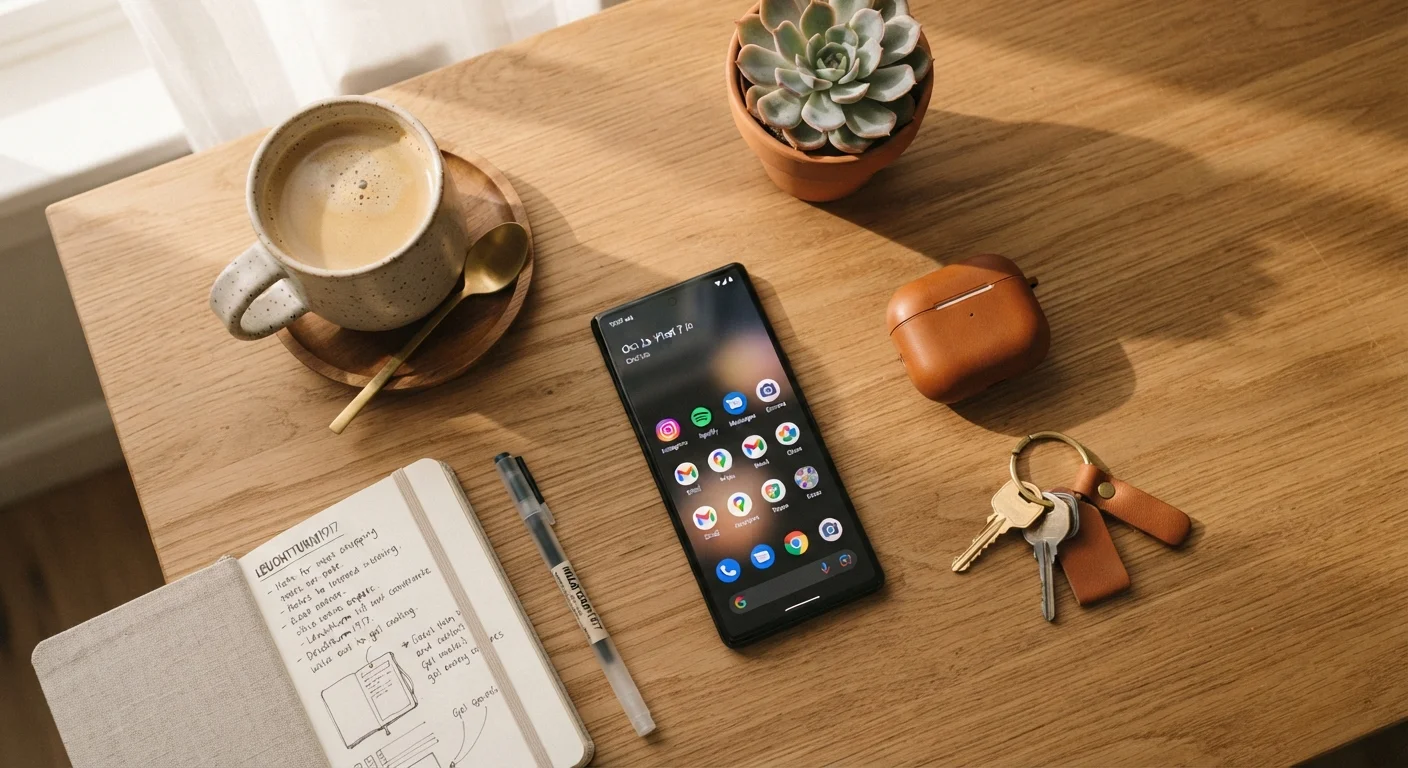
Most people use only a fraction of any app's features. Discover overlooked capabilities in common tools that can genuinely change how you use them.
Key takeaways
- Most apps have features that go largely undiscovered by the majority of their users.
- Hidden settings, keyboard shortcuts, and widgets can significantly reduce daily friction.
- Learning a few deeper features per app is more efficient than downloading new ones.
- Built-in search and automation tools in common apps can save meaningful time each week.
- Reviewing app settings periodically reveals capabilities added in updates you may have missed.
The Hidden Depth in Apps You Already Have
The average smartphone user has dozens of apps installed — and uses most of them at the surface level. A mapping app for directions. A notes app for quick lists. A calendar for appointments. That's the entire relationship for many people. But most of these tools were built with layers of capability that never get touched, not because they're complicated, but because there's rarely a moment that prompts exploration.
This isn't a reason to feel like you're falling behind. It's actually an opportunity. Before downloading yet another app to solve a problem — and impulsive downloads are extremely common — it's worth asking whether a tool you already own handles it. More often than not, it does. If your device is already feeling cluttered, software bloat has real costs worth addressing before you add more.
The following capabilities are found in widely used apps on both iOS and Android. None require technical knowledge. All of them solve real, everyday problems.
Use your camera app's built-in document scanning
Most people know their phone camera takes photos. Far fewer know it can produce clean, high-contrast scans of documents — receipts, forms, handwritten notes — that look nearly indistinguishable from a flatbed scanner's output. On iOS, this is built into the Notes app (tap the camera icon inside a new note). On Android, Google Drive includes a scanning feature accessed directly from the app's home screen.
The result is a properly cropped, shadow-corrected PDF that can be shared or stored without needing a separate scanning app. For anyone who still handles paper documents occasionally, this removes a genuine friction point.
Your phone can produce clean document scans without any third-party app installed.
Set up your keyboard's text replacement shortcuts
Both iOS and Android include a text replacement feature that lets you type a short abbreviation and have the phone expand it into a longer phrase automatically. Navigate to your keyboard settings and look for "Text Replacement" (iOS) or "Personal Dictionary" (Android).
Common uses include your full home address (type "myaddr" and the full address appears), standard email sign-offs, frequently used professional phrases, or even your own name spelled correctly. It's a small setup investment — typically a few minutes — that pays off every single day for frequent texters and emailers.
Text replacement shortcuts turn short abbreviations into full phrases with one tap.
Search inside your email app, not just subject lines
Email search functions are significantly more powerful than most users realize. Beyond typing a sender's name or a subject-line keyword, most email clients support operator-based searches: filtering by date range, by whether a message has attachments, by a specific recipient, or by whether a message is unread.
In Gmail, for example, typing has:attachment filename:pdf after:2023/01/01 surfaces all PDF attachments received after a specific date. Learning even two or three of these search operators can turn a frustrating scroll through hundreds of messages into a ten-second retrieval. Check your email provider's help documentation for the full list of supported search terms.
Email search operators let you find specific messages in seconds rather than scrolling endlessly.
Use widgets to surface information without opening apps
Widgets display live information from an app directly on your home screen or lock screen without requiring you to open the app itself. Weather conditions, your next calendar event, a to-do list, or your step count can all be visible at a glance.
On iOS, press and hold a blank area of the home screen to enter edit mode, then tap the plus icon. On Android, the process varies slightly by device but typically involves pressing and holding the home screen and selecting "Widgets." For apps you check multiple times a day, a well-placed widget can eliminate several taps and context switches — a small but meaningful reduction in daily friction. This connects naturally to the broader goal of letting everyday tech tools simplify your routines.
Widgets show live app data on your home screen so you never have to open the app at all.
Share content between apps using the share sheet
The share sheet — that panel that appears when you tap the share icon in most apps — is more than just a way to send links. It routes content directly into other apps without requiring you to copy, switch apps, paste, and navigate. You can save a web article to your notes app, send a photo directly into a document editor, or add a webpage to a reading list.
Many apps add their own actions to the share sheet, which means the options grow as you install more tools. Spend a moment scrolling to the bottom of your share sheet to see what's available — most users discover at least one useful shortcut they didn't know existed.
The share sheet routes content between apps instantly, eliminating copy-paste workflows entirely.
Enable offline access in cloud-based apps
Many apps that sync data to the cloud — notes, documents, maps — also offer offline access, but it's usually not turned on by default. Enabling it means the content is available even without an internet connection, which matters in basements, on planes, in rural areas, or anywhere connectivity is unreliable.
In Google Maps, for instance, you can download a specific geographic area for offline navigation. Most note-taking and document apps have a similar toggle in their settings. Understanding how apps behave when connectivity drops helps you make smarter decisions about which features to enable ahead of time. And if you're curious about what syncing to the cloud actually involves, the mechanics of cloud storage are worth understanding.
Offline access settings let apps work without internet — but you have to turn that feature on first.
Review and tighten each app's permissions
Apps request access to location, microphone, contacts, and camera — sometimes far beyond what their core function requires. Both iOS and Android let you review and adjust these permissions app by app in your device settings, and doing so occasionally is a useful habit.
Beyond privacy, permission management has practical benefits: restricting background location access from apps that don't genuinely need it can measurably improve battery life. Understanding what each permission actually does is the first step toward making informed decisions about what to allow. Pair this with good password practices for your app accounts and you've covered the most impactful security basics.
Trimming unnecessary app permissions improves both your privacy and your device's battery life.
Build a Smarter Relationship With the Tools You Own
The common thread across every capability listed above is discovery — these features exist, they work, and they're waiting to be used. None require a tech background or hours of study. In most cases, spending five minutes inside an app's settings menu will reveal more than months of habitual use.
A Simple Way to Start Exploring
Pick one app you use every day and spend five minutes inside its settings menu. Look for sections labeled "Advanced," "Accessibility," or "Shortcuts" — these are where lesser-known features tend to live. Most apps also have a help or FAQ section built in that documents capabilities the interface doesn't make obvious. You don't need to master everything at once; one discovery per app is a meaningful upgrade.
It also helps to stay current. App updates frequently introduce new capabilities, and most people never notice because they don't read the release notes. Skipping updates entirely carries its own risks — outdated apps create security and compatibility problems that compound over time.
If productivity is part of what you're optimizing for, understanding how different app types are designed to work gives you a stronger foundation for making the most of them. And if notifications are the reason you're not engaging with your apps thoughtfully, managing those alerts without deleting everything is a good first step. The goal isn't to become a power user — it's simply to get genuine value from what you already carry around every day.
All published content on this website is for informational and educational purposes only and should not be taken as professional advice. We recommend that readers seek expert opinion before making any decisions. The website is not responsible for any actions taken based on the information provided on this website. We are not liable for any inaccuracies, modifications, or omissions in information. Moreover, external links or third-party content are provided for convenience; we are not liable for their correctness. Users are advised to verify every piece of information before they use it for any purpose.