
Notification Overload: Reclaiming Focus Without Deleting Every App

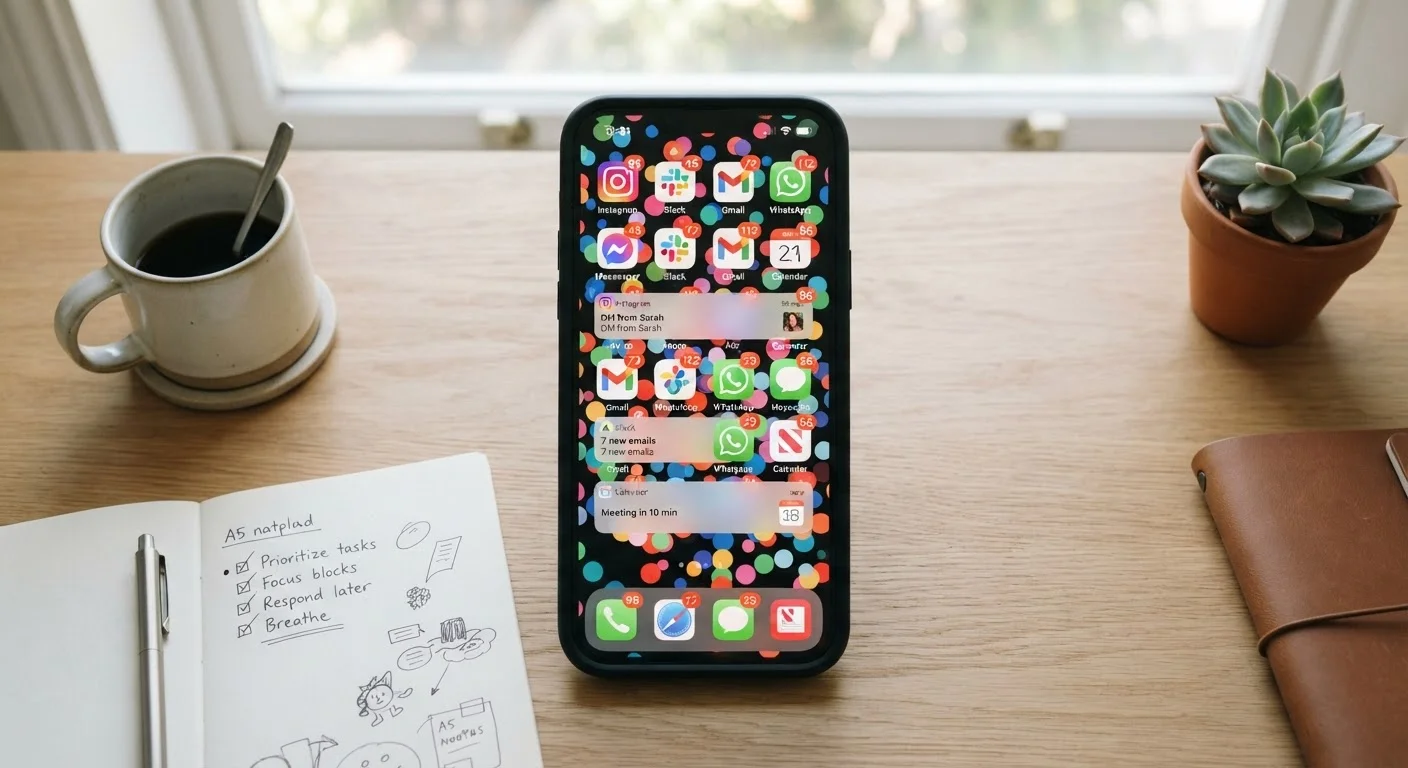
Constant pings eating your attention? Learn practical ways to tame app notifications so you stay informed without being constantly interrupted.
Key takeaways
- Most notification noise comes from a small number of apps — auditing just those delivers the biggest focus gains.
- Your phone's built-in notification settings offer precise control without requiring any third-party tools.
- Scheduled delivery and Focus modes let you stay informed on your own timetable rather than an app's.
- Reducing interruptions doesn't mean going offline — it means choosing when you engage.
- A brief weekly review keeps your notification setup working as your app habits evolve.
Why Notifications Feel Out of Control
The average smartphone user receives a significant volume of alerts every day — push notifications, badges, banners, and sounds — from apps that were each designed, individually, to compete for immediate attention. The problem isn't any single app. It's that every app operates as though its messages are the most important thing on your screen right now.
App developers build notification defaults to maximize engagement, not to respect your workflow. When you install an app and tap "Allow Notifications" without adjusting settings, you're handing that app a standing invitation to interrupt you at will. Most people never revisit that permission. Over time, the result is an inbox-style existence applied to your entire phone.
The good news: you don't need to delete apps to fix this. Both iOS and Android give you granular control over exactly how, when, and whether each app can reach you. The steps below walk through a practical audit that takes most people under an hour. If you're also dealing with apps you no longer use — which often contribute background noise and battery drain — our guide to digital clutter covers how to spot and clear software bloat alongside your notification cleanup.
What You'll Need Before You Start
No special tools or apps are required. Everything described here uses features already built into your phone's operating system. Before working through the steps, it helps to have a few minutes of undisturbed time and a rough sense of which apps currently interrupt you most.
What you will need
Step-by-Step: Auditing and Reclaiming Your Notifications
Follow these steps in order. Each builds on the last, and together they give you a sustainable system rather than a temporary fix.
Run a notification audit in Settings
Open your phone's main Settings app and navigate to Notifications (iOS) or Apps & Notifications (Android). You'll see a list of every app that has requested notification permission. On iOS, the list is sorted by most recent delivery by default — a useful view because the noisiest apps tend to float to the top.
Scroll through the entire list without changing anything yet. The goal is simply to see what you've granted access to. Most people find several apps they'd forgotten about entirely.
Identify your three loudest apps
Think back over the past week. Which apps interrupted you most often in ways that felt unwelcome or unnecessary? Common culprits include social media apps, news aggregators, shopping apps, and games. Write down your top three.
These are your highest-priority targets. Fixing just three apps often removes the majority of unwanted interruptions because notification volume is rarely distributed evenly across all your apps.
Disable or demote alerts for low-value apps
For each of the three apps you identified, tap into its notification settings. You'll typically see options including:
- Allow Notifications — a master on/off switch
- Banners / Pop-ups — the alert that appears on screen
- Sounds — the audio ping
- Badges — the numbered red dot on the app icon
- Lock Screen — whether alerts appear when the phone is locked
For genuinely low-value apps (shopping deals, social reactions, game reminders), turning off banners and sounds while leaving badges enabled is a useful middle ground: the information is technically available when you open the app, but it no longer interrupts you to deliver it.
Enable notification scheduling or summary delivery
Both iOS and Android offer ways to batch notifications so they arrive at predictable times rather than constantly throughout the day.
On iOS, go to Settings > Notifications > Scheduled Summary. You can select which apps feed into the summary and set one or two delivery times per day — for example, 9 a.m. and 6 p.m. Apps included in the summary stop interrupting you in real time and instead deliver a digest at your chosen time.
On Android, the equivalent is Notification Batching under some manufacturer skins, or you can approximate the same effect by setting apps to deliver silently and checking them intentionally. Some Android versions also support scheduled Do Not Disturb windows under Settings > Sound > Do Not Disturb.
Set up a Focus mode for deep work
Focus modes (called Focus on iOS, Modes or Digital Wellbeing on Android) let you define which apps and contacts can reach you during specific activities — work, sleep, exercise, or any custom mode you create.
A basic work Focus might allow calls and messages from close colleagues while silencing everything else. You can schedule it to activate automatically during your core working hours so you don't have to remember to turn it on.
Setting up even one Focus mode — a simple "Do Not Disturb except for calls" configuration — gives you a reliable on-demand focus state without requiring you to manually toggle individual app settings every time.
Revisit in-app notification preferences
Many apps have their own notification settings separate from — and more granular than — your phone's system settings. Inside a messaging app, for example, you might be able to mute individual group chats while keeping direct messages active. Inside a news app, you might be able to limit alerts to a specific topic rather than receiving every breaking update.
For your highest-use apps, spend two minutes in each app's settings menu (usually under the app's own profile or gear icon) and look for a Notifications section. You'll often find options that the system-level settings don't expose. This is also a good opportunity to explore features you may not know exist — getting more from the apps already on your phone covers this kind of overlooked functionality in more depth.
Start Small, Then Expand
You don't need to reconfigure every app in one session. Adjusting just your three noisiest apps and enabling scheduled delivery for the rest will produce a noticeable difference within a single day. Build from there over subsequent weeks as you observe what still interrupts you unnecessarily.
Keeping It Working Over Time
Notification settings drift. Every new app you install comes with its own defaults, and apps you rely on may add new notification types through updates — a reason to stay aware of what's changing under the hood, which our guide to app updates explains in more detail.
A realistic maintenance routine is simple: once a week, spend two minutes scanning your notification summary or lock screen history and ask whether anything surprised you. If an app sent alerts you didn't expect or want, go directly to its settings and adjust. That rhythm keeps your system honest without requiring a full audit every month.
Notification control is one part of a broader set of decisions about how your apps interact with you. App permissions are another layer worth reviewing alongside your notification settings — what an app can see or access often shapes what it chooses to tell you. And if the goal is to genuinely reclaim your evenings as well as your workday, the practical starting point for overwhelmed professionals pairs well with the habits built here.
Staying informed is a reasonable goal. Being interrupted constantly is not the price you have to pay for it. With a thoughtful notification setup, your phone can surface what genuinely matters — on a schedule that works for you.
All published content on this website is for informational and educational purposes only and should not be taken as professional advice. We recommend that readers seek expert opinion before making any decisions. The website is not responsible for any actions taken based on the information provided on this website. We are not liable for any inaccuracies, modifications, or omissions in information. Moreover, external links or third-party content are provided for convenience; we are not liable for their correctness. Users are advised to verify every piece of information before they use it for any purpose.