
Getting Your First Smart Home Device Up and Running

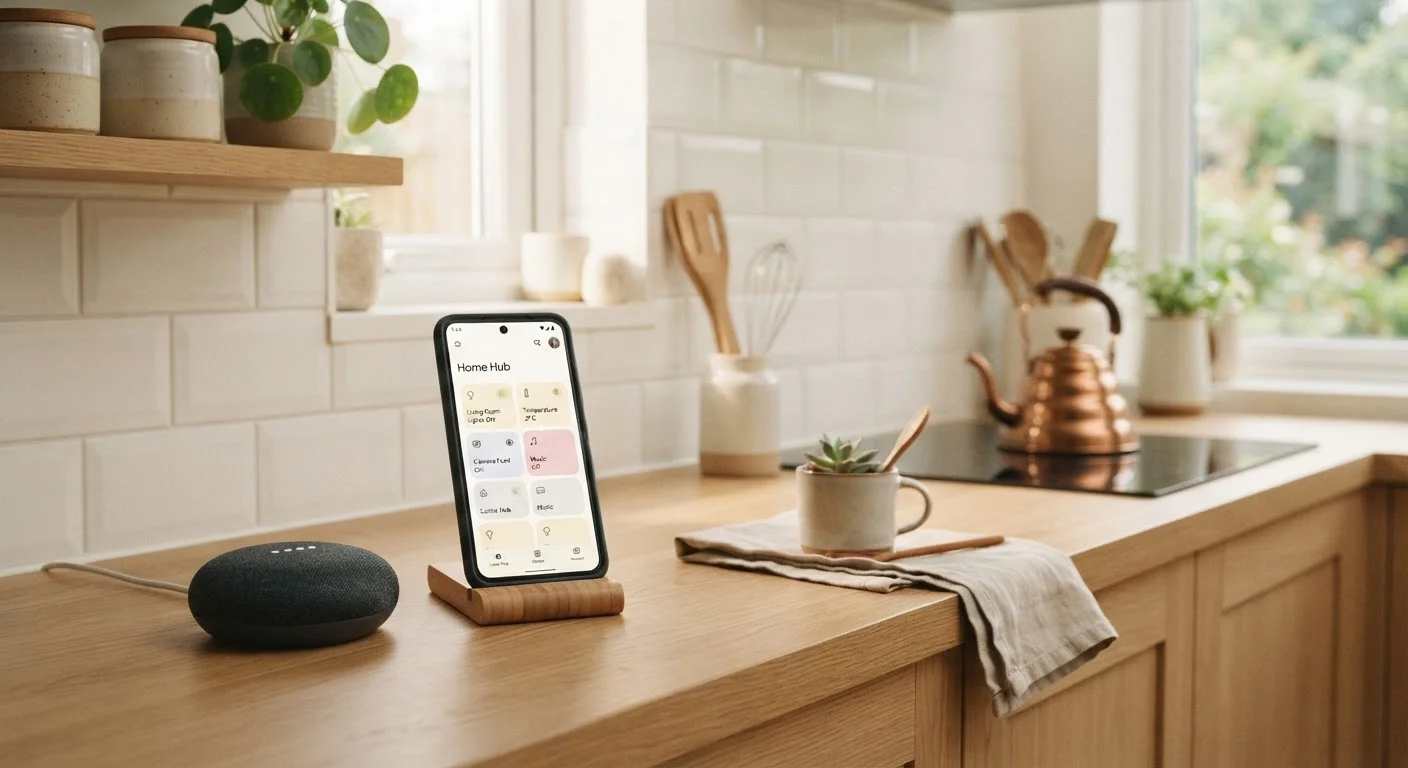
A calm, jargon-free walkthrough for setting up your first smart home gadget — from unboxing to actually using it day to day.
Start here
What a Smart Home Device Actually Does
Prepare
What You Need Before You Start
Set up
Unboxing and First Setup
Go online
Connecting to Your Home Network
Build habits
Making It Part of Your Daily Routine
Fix issues
Troubleshooting Common First-Time Problems
Key takeaways
- Most smart home devices are designed for non-technical users and take under 30 minutes to set up.
- A stable Wi-Fi connection and a compatible smartphone are the two most critical requirements.
- Starting with a single, low-stakes device builds confidence before expanding your setup.
- Automations and routines are where smart home devices deliver the most everyday value.
- Most connection problems can be resolved by restarting the device and checking your Wi-Fi band.
What a Smart Home Device Actually Does
A smart home device is any household gadget that connects to your home's internet network so you can control it remotely, schedule it automatically, or link it to other devices. Think of a lamp that turns itself off when you leave the room, or a thermostat that adjusts the temperature based on your daily schedule.
The appeal isn't novelty — it's convenience. These devices quietly eliminate small, repetitive tasks: remembering to turn off lights, adjusting the heat before bed, checking whether you left the front door unlocked. For busy households, that adds up quickly.
If you want to understand the terminology you'll encounter — words like firmware, mesh network, or hub — the Everyday Gadget Glossary is a plain-English reference worth bookmarking before you begin.
Wi-Fi band
Home routers broadcast on two main frequencies: 2.4 GHz (longer range, slower) and 5 GHz (shorter range, faster). Many smart devices only support 2.4 GHz.
Companion app
The smartphone application made by the device's manufacturer that you use to set up, control, and customize your smart home device.
Automation
A rule you set that makes a device act on its own when certain conditions are met — for example, turning off lights when you leave home.
Firmware
Built-in software that controls how a device operates. Manufacturers release firmware updates to fix bugs or add features; the companion app usually handles these automatically.
Hub
A central device that connects and coordinates multiple smart home gadgets under one system. Not always required — many devices connect directly to your router and app.
Factory reset
Returning a device to its original out-of-box state, erasing all settings and connections. Useful when troubleshooting a device that won't set up correctly.
What You Need Before You Start
Before you open the box, a quick checklist saves real frustration later. You'll need:
- A home Wi-Fi network — note your network name (called an SSID) and password. Most devices connect to the 2.4 GHz band rather than 5 GHz, so knowing which one you're on matters.
- A compatible smartphone — nearly every smart home device is set up through a companion app, available on iOS or Android. Check the app's minimum operating system requirement on the device packaging.
- A power outlet near your setup location — obvious, but easy to overlook for devices like smart plugs or displays.
- An account with the device's platform — most manufacturers require you to create a free account before the app will work.
Thinking about the cost of running smart devices alongside your existing appliances? It's worth keeping in mind when you're building a practical household budget — most smart devices draw minimal standby power, but it's still worth knowing.
Unboxing and First Setup
Modern smart home devices are packaged with setup in mind. Inside the box you'll typically find the device itself, a power cable or adapter, and a quick-start card with a QR code. That QR code usually opens the companion app directly — use it.
- Download the companion app first. Search the app store for the app named on the packaging, not a generic smart home app. Install it and create your account before plugging anything in.
- Plug in the device and wait. Most devices enter a setup mode automatically — indicated by a blinking light or a specific color. The app will tell you what to look for.
- Follow the in-app prompts step by step. The app will ask you to connect to the device's temporary network, then hand it off to your home Wi-Fi. This is the most technically involved step — but it's guided and takes about two minutes.
- Name your device something useful. 'Living room lamp' is far more practical than the default 'Device 001' when you're controlling it by voice or app later.
If you're planning any broader home improvement projects, this is also a good time to think about where smart switches or sensors would be most useful long-term.
Connecting to Your Home Network
Network connection is where most first-time setup issues occur, and almost all of them trace back to one of three causes: wrong Wi-Fi band, incorrect password, or the device being too far from the router.
Wi-Fi band: Many smart devices — especially older or lower-cost ones — only support the 2.4 GHz Wi-Fi band, not the faster 5 GHz band. If your router broadcasts both under the same name, try temporarily connecting your phone to the 2.4 GHz network during setup. Your router's manual or admin page will show you how to check this.
Password errors: Wi-Fi passwords are case-sensitive. Type carefully, or use the 'show password' option in the app if available.
Signal strength: If the device sits far from your router — in a garage, basement, or corner bedroom — it may struggle to maintain a stable connection. A Wi-Fi extender or a mesh network system can solve this without rewiring anything.
Once connected, the device will typically confirm success with a solid light or a chime, and the app will show it as 'online.'
Position Your Device Close to the Router First
When setting up a new smart home device for the first time, run the initial setup with the device positioned close to your Wi-Fi router — even if that's not where you plan to keep it. Once the setup completes successfully, move it to its permanent location and confirm it stays connected. This removes signal strength as a variable if something goes wrong during setup.
Making It Part of Your Daily Routine
The real value of a smart home device emerges when it works with your habits rather than requiring you to interact with it consciously. Most companion apps offer two tools for this: schedules and automations.
Schedules run at set times — for example, a smart plug that turns your coffee maker on at 6:45 a.m. every weekday. Set it once, and it runs indefinitely.
Automations respond to conditions — your porch light turns on when the sun sets, or your thermostat drops overnight when a specific time is reached. These require a little more setup but deliver the most hands-free convenience.
Start small. Pick one automation that solves a real, recurring friction point in your day. Once that feels natural, you can expand — and the pre-purchase checklist is a useful tool before adding any new device to your home.
Troubleshooting Common First-Time Problems
Most issues with smart home devices are temporary and fixable without any technical knowledge. Here are the most common scenarios and how to address them:
- Device shows as offline in the app
- Unplug the device for 10 seconds, plug it back in, and wait a minute. If it stays offline, restart your router and check that your Wi-Fi is working on another device.
- Setup fails partway through
- Delete the device from the app, factory reset it (usually a button held for 5–10 seconds), and start the setup process from scratch. This resolves the majority of failed setups.
- Voice commands aren't working
- Check that the smart home device is linked to your voice assistant's app under the connected services or 'Skills' section. Unlinking and re-linking often fixes recognition issues.
- Automations aren't triggering
- Confirm the device's time zone is correctly set in the app, and that any required location permissions are enabled on your phone.
If persistent problems remain after these steps, the device manufacturer's support page — usually accessible directly from within the companion app — is the most reliable next resource.
Frequently Asked Questions
All published content on this website is for informational and educational purposes only and should not be taken as professional advice. We recommend that readers seek expert opinion before making any decisions. The website is not responsible for any actions taken based on the information provided on this website. We are not liable for any inaccuracies, modifications, or omissions in information. Moreover, external links or third-party content are provided for convenience; we are not liable for their correctness. Users are advised to verify every piece of information before they use it for any purpose.