
Why 'Sync Across Devices' Is Harder Than It Sounds

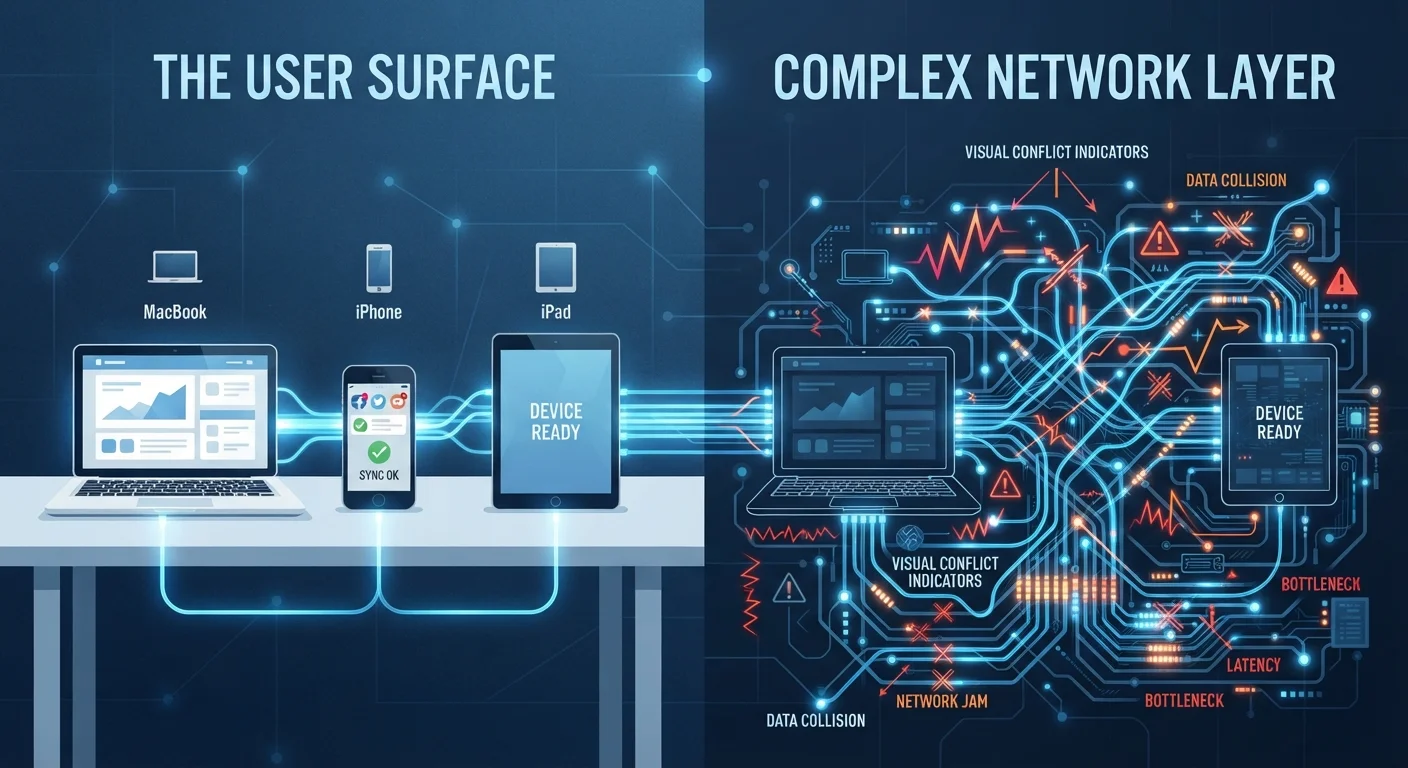
Apps promise seamless syncing, but version conflicts and offline gaps are common. Understand how sync works so you're not caught out by data loss.
Key takeaways
- Sync relies on an internet connection and a central server; without either, it quietly pauses.
- When two devices edit the same file offline, a version conflict can cause data loss.
- Timestamps alone are unreliable for resolving conflicts — newer is not always correct.
- Selective sync and storage limits are common hidden causes of missing files.
- Understanding how sync works helps you choose when to trust it and when to verify manually.
The Gap Between the Promise and the Reality
"Your files, everywhere, always up to date." It's one of the most appealing promises in modern technology — and it's largely true, much of the time. But the phrase glosses over a genuinely complex engineering problem that trips up users and developers alike.
Sync is not a single technology. It's a coordinated process involving change detection, network transmission, server-side storage, and conflict resolution — all happening invisibly in the background. When any one of those steps stumbles, the result can range from a mildly annoying delay to a genuinely lost document. Understanding the mechanics helps you know when to trust sync and when to double-check your data. For a broader look at how connectivity affects your apps in general, see how apps behave when connectivity drops.
How Sync Actually Works Under the Hood
Most sync systems follow the same basic architecture. Your device monitors files or data for changes. When a change is detected — you edit a note, add a photo, update a spreadsheet — the app packages that change and sends it to a central cloud server. Other devices periodically check the server for updates and download anything new.
The challenge begins with timing. If you're on a fast, stable connection, this cycle can happen in seconds and feel instantaneous. But sync is fundamentally asynchronous — your devices don't talk directly to each other in real time. Everything routes through a server, which means latency is always part of the equation.
Change detection itself adds another layer of complexity. Some apps track changes at the character level (knowing exactly which words you altered). Others simply compare whole file timestamps and assume the most recently modified version is correct. Timestamp-based systems are fast but fragile: clocks on different devices can drift slightly, which means "most recent" doesn't always mean "most accurate."
Sync Is Not the Same as Real-Time Collaboration
Apps like collaborative document editors handle simultaneous editing through a different mechanism — they stream individual keystrokes or changes to a shared server that all users read from in real time. Standard sync, used by most file storage and note-taking apps, is a separate process designed for single-user workflows across multiple devices, not true multi-user simultaneous editing. Conflating the two leads to misplaced expectations about what your sync service can handle.
Why Conflicts Happen — And What Apps Do About Them
The most common cause of a sync problem is a conflict: two versions of the same file that have both been changed since they last agreed with each other. Picture this scenario — you edit a document on your laptop at a coffee shop with no Wi-Fi, then pick up your phone and edit the same document on mobile data. When both devices eventually sync to the server, the app faces a dilemma: which version should survive?
Apps handle this differently. Some pick the newer timestamp and silently discard the other edits — a fast but potentially harmful approach. Others create a duplicate "conflict copy" so you can manually review both versions, which is safer but leaves a mess to clean up. A small number of sophisticated apps use operational transformation or similar techniques to intelligently merge changes at a fine-grained level, which is how real-time collaborative tools manage simultaneous editing.
None of these approaches is perfect. If you've ever opened a document and found edits missing that you were sure you made, a conflict resolution decision — made silently, without your input — is the likely culprit.
The Offline Problem and Storage Limits
Sync pauses the moment your internet connection drops. Your device continues to work locally, queuing up changes, but nothing leaves your device until connectivity is restored. This is fine in principle — but problems emerge when you're offline for a meaningful stretch, using multiple devices, and expecting everything to just work when you reconnect.
A related and underappreciated issue is storage quotas. Most cloud sync services cap free storage at a few gigabytes. When you hit that limit, sync doesn't always fail loudly. Sometimes it silently stops syncing certain files, or syncs metadata without the full file content. You might see a file listed on one device that actually can't open properly on another because only the placeholder synced, not the data itself. This is a common but rarely explained frustration. For related advice on keeping your devices from accumulating unnecessary software, visit our guide on digital clutter.
Selective sync — where you choose which folders sync to which devices — adds another layer of confusion. A file might exist in your cloud account but not on a specific device simply because that device's selective sync settings exclude that folder. It isn't missing; it just isn't there yet.
What You Can Do to Sync More Safely
Understanding sync's limitations suggests practical habits that reduce risk. First, treat sync as a convenience layer, not a backup. Sync mirrors your current state everywhere — including deletions and corrupted files. A genuine backup, kept separately and updated on a schedule, protects you from accidental loss that sync would faithfully propagate. This is especially relevant when you're working with apps that handle important documents or personal records.
Second, be deliberate about offline editing. If you know you're going to be without internet, try to limit complex editing to one device. Editing the same file on two offline devices simultaneously almost guarantees a conflict when you reconnect.
Third, take advantage of version history where it's available. Many cloud storage providers retain previous versions of files for a set period — sometimes 30 days, sometimes longer depending on the tier. This is your safety net if a conflict resolution goes wrong. Check your specific service's settings to confirm it's enabled and understand how long versions are kept.
Check Version History Before Assuming Data Is Gone
Before concluding that a sync error has permanently deleted or corrupted your file, check the version history in your cloud storage service. Most major providers retain earlier file versions for at least 30 days, giving you a way to restore the last known good state. Look for a 'Version History' or 'File Activity' option in the file's right-click or properties menu.
Finally, keep your apps updated. Sync protocols and conflict resolution logic improve over time, and running an outdated version of an app can mean missing fixes for known sync bugs. See why skipping app updates creates real problems for more context on what you risk by staying behind.
Frequently Asked Questions
All published content on this website is for informational and educational purposes only and should not be taken as professional advice. We recommend that readers seek expert opinion before making any decisions. The website is not responsible for any actions taken based on the information provided on this website. We are not liable for any inaccuracies, modifications, or omissions in information. Moreover, external links or third-party content are provided for convenience; we are not liable for their correctness. Users are advised to verify every piece of information before they use it for any purpose.